Many businesses start with free email, such as company.ltd@gmail.com. It is quick to set up, but to a customer it looks like a hobby. When a quote comes from sales@company.com, it immediately looks more trustworthy.
Your own domain in email isn’t just about looks. It affects who controls the addresses, what happens when an employee leaves, and whether a message reaches the inbox or spam. In this article we go through why email should be set up on your own domain, how it is done, and which settings your messages won’t get through without.
Why put email on your own domain?
Free email is tied to the service and to a single account. Your own domain, on the other hand, belongs to the company, and you can create as many addresses under it as you need.
- Trust: The customer recognises the company from the address. The address also works as an advert, because the domain leads to your website.
- The company stays in control: When an employee leaves, the address doesn’t leave with them. Messages can be redirected to someone else or the account closed.
- Role-based addresses: Addresses like sales@, billing@ and support@ stay the same even when the person handling them changes.
- You can change the service: When the addresses are on your own domain, you can switch email providers without the addresses changing.
What you need to get started
Email on your own domain needs two things: a domain and an email service.
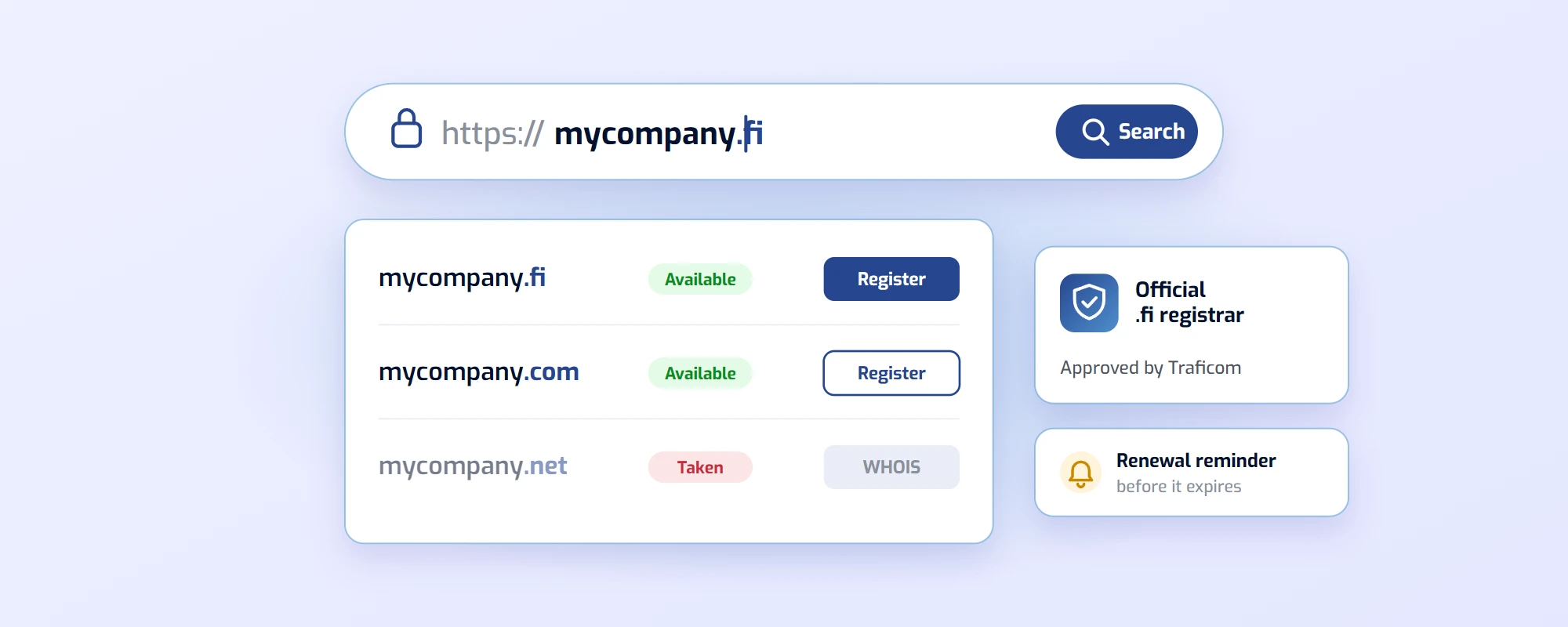
- A domain: If the company already has a website, the domain probably exists. If not, register it first.
- An email service: The service where the mailboxes live. Options include Microsoft 365, Google Workspace or the email that comes with web hosting.
- DNS settings: Records are added to the domain’s name service that tell where the company’s email should be delivered.
When choosing a service, think about what else you need. If the company already uses Word and Excel, Microsoft 365 may be a natural choice. If your calendars and files are with Google, Google Workspace fits better. For email alone, a lighter service is often enough.
How to set up the email
The setup usually goes in the same order, whatever the service:
- Order the email service and add your domain to it.
- Verify that the domain is yours. The service gives you a record to add to DNS for this.
- Add the MX records the service gives you. They route incoming mail to the right service.
- Add SPF, DKIM and DMARC records so outgoing mail gets through (more on these below).
- Create the mailboxes and shared addresses, and test by sending and receiving messages.
If the domain already has email in another service, time the move for a quiet moment and move the old messages before the MX records are changed.
SPF, DKIM and DMARC decide whether a message gets through
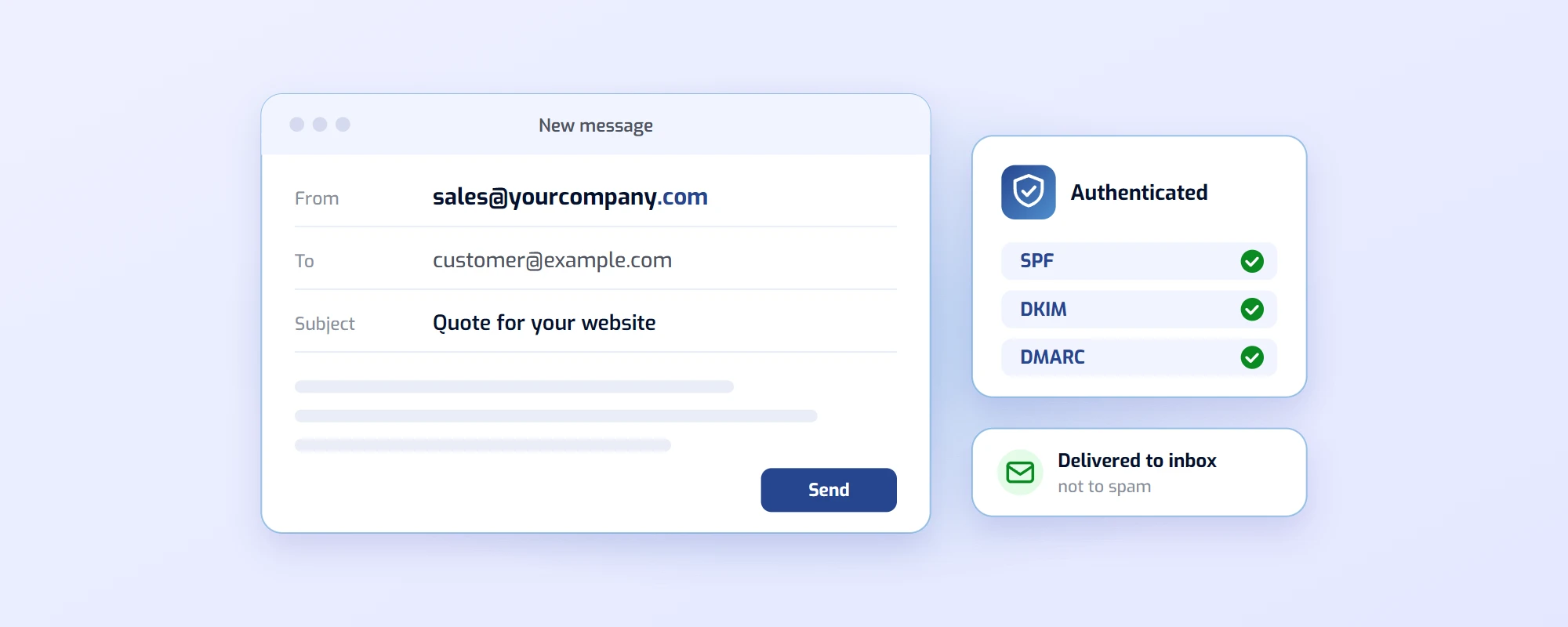
It is easy to fake the sender of an email. That’s why receiving services check whether a message really was sent from a service the domain allows. Three DNS records are used for this:
- SPF tells which servers may send mail in your domain’s name.
- DKIM adds a signature to the message that lets the recipient check it hasn’t been changed on the way.
- DMARC tells the recipient what to do with messages that fail the checks, and can send you reports about them.
Google requires everyone sending mail to Gmail to use at least SPF or DKIM, and recommends using all three. Messages that aren’t authenticated can end up in spam or be rejected altogether (Google: Email sender guidelines).
Example: a company sends its invoices from its accounting software using the company’s own address. If the software’s server hasn’t been added to the SPF record, the customer’s email may treat the invoice as fake, and it lands in spam. That’s why newsletter services and any other services that send with your address must be added to the records too.
The most common mistakes
- Addresses in personal accounts: The company’s most important address is in a single employee’s account, and when they leave, moving the address is difficult.
- Missing SPF, DKIM and DMARC records: Email works, but some messages end up in spam and nobody notices.
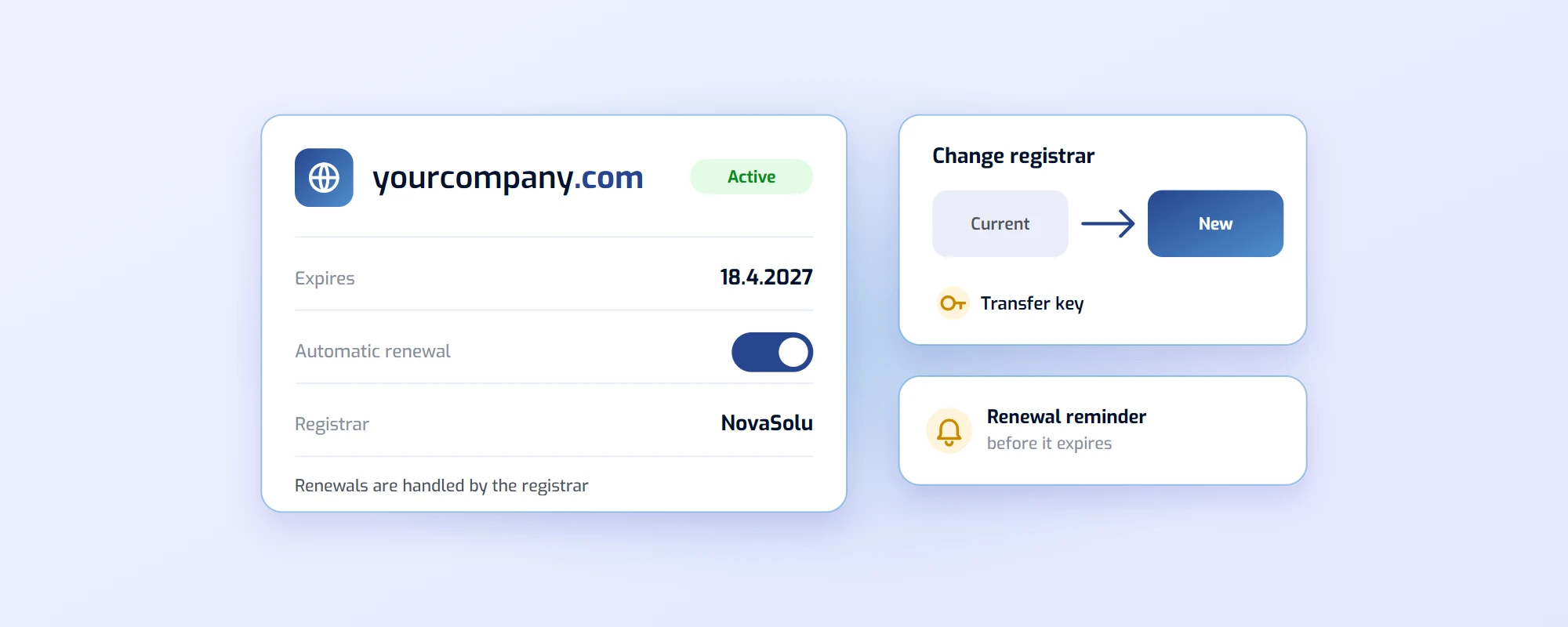
- A forgotten domain: If the domain expires, email stops working too. Read more about renewing a domain.
- No two-factor authentication: An email account can reset the passwords of other services, so protect it with two-factor authentication.
Summary
Email on your own domain tells customers the company is trustworthy and keeps the addresses in the company’s hands. Setting it up needs a domain, an email service and the right DNS settings, and SPF, DKIM and DMARC are what decide whether messages reach the inbox or spam.
We register domains and also offer managed email services where the settings are handled for you. If you want help getting started, contact us at domain@novasolu.com.